2026 Guide: How to Run Xcode on Windows for iOS Development
Can You Directly Install Xcode on Windows?
The short answer is: No, there is no .exe installer for Xcode. Xcode is Apple's proprietary Integrated Development Environment (IDE), and it is strictly locked to the macOS ecosystem.
For students and beginner developers owning a Windows PC, this creates a significant barrier. You want to learn Swift or build your first iPhone app, but you don't have $1,000+ for a MacBook Pro. In 2026, the landscape has changed slightly due to the total dominance of Apple Silicon (M-series chips), making old workarounds like simple emulators less effective. However, there are still three reliable ways to bridge the gap.
3 Main Ways to Run Xcode on Windows in 2026
To get Xcode running while keeping your Windows laptop, you generally have three choices. Each comes with different levels of difficulty and stability.
| Strategy | Setup Difficulty | Performance | Stability | Best For |
|---|---|---|---|---|
| Virtual Machine (VM) | High | Low | Low | Occasional testing |
| Hackintosh | Very High | Medium | Unstable | Tech enthusiasts |
| Remote Mac Rental | Very Low | High | Very High | Serious students / Pros |
Why 2026 is Harder for Virtual Machines and Hackintosh
In previous years, setting up a "Hackintosh" (installing macOS on PC hardware) or running macOS in VMware was a popular hobby. However, in 2026, these methods face three major "pain points":
- Architecture Mismatch: Modern Xcode versions are optimized for Apple Silicon (ARM64). Running them on Intel/AMD Windows hardware through a Virtual Machine results in sluggish performance and frequent crashes.
- Missing Features: Graphics acceleration rarely works in a VM. This means the iOS Simulator—essential for seeing your app—will be painfully slow or fail to boot.
- Apple ID & Security: Apple has tightened "Find My" and iCloud security. Unofficial macOS environments often get flagged, preventing you from logging into App Store Connect or syncing your code via iCloud.
The Modern Solution: Accessing a Real Remote Mac
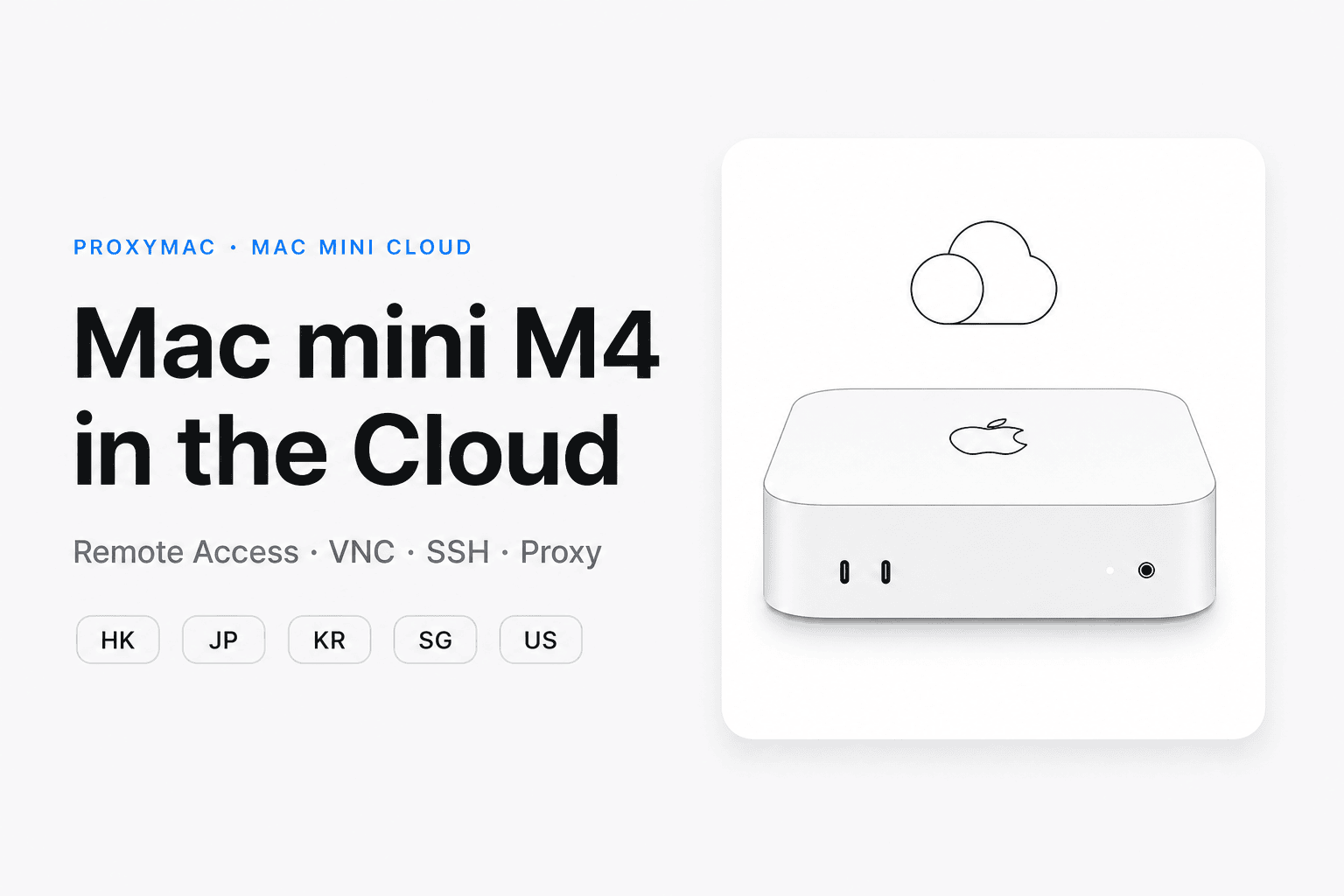
Since local virtualization is becoming more difficult, the industry has shifted toward Mac-as-a-Service. Instead of fighting with drivers on your PC, you connect to a real, physical Mac mini or Mac Studio located in a professional data center.
By using a Remote Desktop Protocol (RDP) or VNC, your Windows screen becomes a window into a high-performance macOS environment. You get the full power of Apple Silicon M2 or M3 chips without the upfront cost of the hardware.
Step-by-Step: How to Set Up Your Xcode Environment
If you decide to go the professional route and use a remote Mac service, here is the standard workflow to get started:
- Select a Plan: Choose a weekly or monthly rental plan that fits your study schedule.
- Receive Credentials: You will get an IP address, username, and password for your dedicated Mac.
- Connect via PC: Use the built-in "Remote Desktop Connection" on Windows or a tool like RealVNC.
- Log in to Apple ID: Open the App Store on the remote Mac and sign in safely.
- Download Xcode: Install the latest version of Xcode directly from the official Mac App Store.
- Start Coding: Open the iOS Simulator and run your first "Hello World" project.
Critical Data for Your Decision
Before choosing a method, consider these three hard facts:
* Storage Requirements: Xcode and its associated simulators require at least 40GB to 60GB of free space. Most budget VMs on Windows laptops fail because they run out of disk space quickly.
* RAM Minimums: Xcode 15+ requires a minimum of 8GB RAM for basic tasks, but 16GB is the functional standard for 2026.
* Update Cycles: Apple releases major macOS updates every year. A Hackintosh setup often "breaks" during an update, requiring hours of troubleshooting, whereas a managed Mac service handles updates seamlessly.
Stop Troubleshooting, Start Coding
Choosing to fight with Virtual Machine settings or "Hackintosh" kernel patches can eat up weeks of your time—time that should be spent learning Swift or SwiftUI. While Windows is excellent for many tasks, it is simply not the native home for iOS development.
Traditional local workarounds are often slow, lack GPU support, and can be frustratingly unstable for beginners. If you are serious about becoming an iOS developer but aren't ready to buy a new computer, a remote Mac rental offers the most authentic and optimized experience.
By using proxymac.com, you can rent a high-performance Apple Silicon Mac for the price of a few cups of coffee. You bypass the installation headache and jump straight into a production-ready environment. It is the smartest way to verify your passion for Apple development before committing to a $2,000 hardware purchase.
FAQ
Further Reading
Start Coding on Your Private Mac Cloud in 5 Minutes
Forget the complexity of virtual machines—get a dedicated Mac mini M4 with pre-installed macOS for full, native Xcode support on your Windows PC.
Experience buttery smooth development with 10-core CPU performance and 16GB RAM, capable of running iOS Simulators and Xcode Archive 40% faster.