2026 Guide: How to Develop iOS Apps on Windows Using Remote Mac
Can You Develop iOS Apps on Windows in 2026?
The short answer is: Not natively, but yes through infrastructure. As of 2026, Apple still strictly limits Xcode and the iOS SDK to macOS. For developers who prefer the Windows ecosystem or lack the budget for high-end Apple hardware, this creates a significant barrier.
However, the "Remote Mac" model has matured into a professional-grade solution. By utilizing a high-performance Apple Silicon (M2/M3) host in a data center, Windows users can now achieve a lag-free development experience. This article provides a technical roadmap for setting up a remote iOS development environment, handling simulator rendering, and optimizing your build-deploy workflow without owning a physical Mac.
Pain Points of Cross-Platform iOS Development
Despite the rise of Flutter and React Native, the final "bottleneck" always leads back to macOS. Windows developers typically face these three critical hurdles:
- The Xcode Barrier: You cannot compile Swift or Objective-C code for the App Store without a macOS kernel. Even cross-platform frameworks require a Mac for the final linking and code signing process.
- Hardware Depreciation: A MacBook Pro capable of efficient development (32GB+ RAM) costs upwards of $2,500. For solo developers or part-time projects, this capital expenditure (CapEx) often results in a poor ROI as hardware loses 30% value annually.
- The Debugging Latency: Relying on simple cloud build services (like basic CI/CD) often means "blind coding." Without a live iOS Simulator, fixing UI bugs becomes a slow "code-push-wait-check" cycle that kills productivity.
Comparison: Ownership vs. Remote Rental in 2026
| Feature | Local MacBook Pro M3 | Proxymac Remote Instance | Cloud Build (CI only) |
|---|---|---|---|
| Initial Cost | $2,000 - $3,500 | $0 (Subscription based) | $0 |
| Live GUI/Simulator | Native | Yes (Low Latency VNC/Web) | No |
| Maintenance | User's Responsibility | 24/7 Managed Uptime | N/A |
| Scalability | Fixed Hardware | Instantly Upgrade RAM/CPU | Fixed |
| 2026 Deployment | Manual/Local | Permanent Build Server | Automated |
Step-by-Step: Setting Up Your Windows-to-Mac Workflow
Follow these 5 steps to transform your Windows PC into a professional iOS workstation.
Step 1: Provisioning Your Apple Silicon Instance
Secure a remote Mac instance running the latest macOS. Ensure the provider offers root access so you can install custom Homebrew packages and manage the Xcode Command Line Tools. For 2026 projects, a minimum of 16GB RAM is recommended for smooth Xcode 17+ performance.
Step 2: Configuring the Windows-Side Client
Install a high-performance VNC client or use a specialized web-based console. For Windows users, TightVNC or RealVNC are standard. To handle the "Command" key issue, map your Windows Key to the Mac Command Key within the client settings.
Step 3: Git-Based Code Synchronization
Instead of coding directly through the remote desktop (which can be sluggish for typing), use Visual Studio Code (VS Code) on Windows.
1. Write code locally on Windows.
2. Push to a private GitHub Repositority.
3. Use a simple script or Webhook on the remote Mac to git pull and trigger xcodebuild.
Step 4: Accessing the iOS Simulator via Browser
In 2026, the most efficient way to view your app is through an optimized streaming window. Modern remote Mac services provide a "Web Console" that uses H.264 encoding to stream the macOS desktop directly to Chrome or Edge, providing 60FPS fluidity for testing animations.
Step 5: Handling Certificates and Signing
With full root access on your remote Mac, you can open Keychain Access and import your .p12 certificates. Use the remote Mac to generate the CSR (Certificate Signing Request) to ensure your App Store distribution workflow remains entirely on the Apple sub-system.
Technical Data and Cost Analysis
- Network Requirement: A standard 20Mbps connection is sufficient for 1080p remote desktop streaming with <50ms latency.
- Performance Benchmark: A remote M2 Pro instance compiles a standard Swift project 40% faster than a local 2019 Intel-based MacBook Pro.
- Cost Efficiency: For a 6-month development cycle, renting a Mac costs roughly 12-15% of the retail price of the same hardware, preserving your cash flow for marketing or UI design.
Why a Remote Mac Outperforms Alternative Solutions
While options like Hackintosh or low-tier Mac minis exist, they often fail the "long-term stability" test. Hackintosh setups are increasingly unstable with Apple's transition away from Intel, often breaking during critical macOS updates. Older Mac minis quickly become bottlenecks as Xcode grows more resource-intensive each year.
The current alternative—using "Cloud CI" services—is excellent for final builds but useless for the 90% of development time spent in the "Produce-Debug" loop. You cannot interact with a real-time UI on a standard CI server.
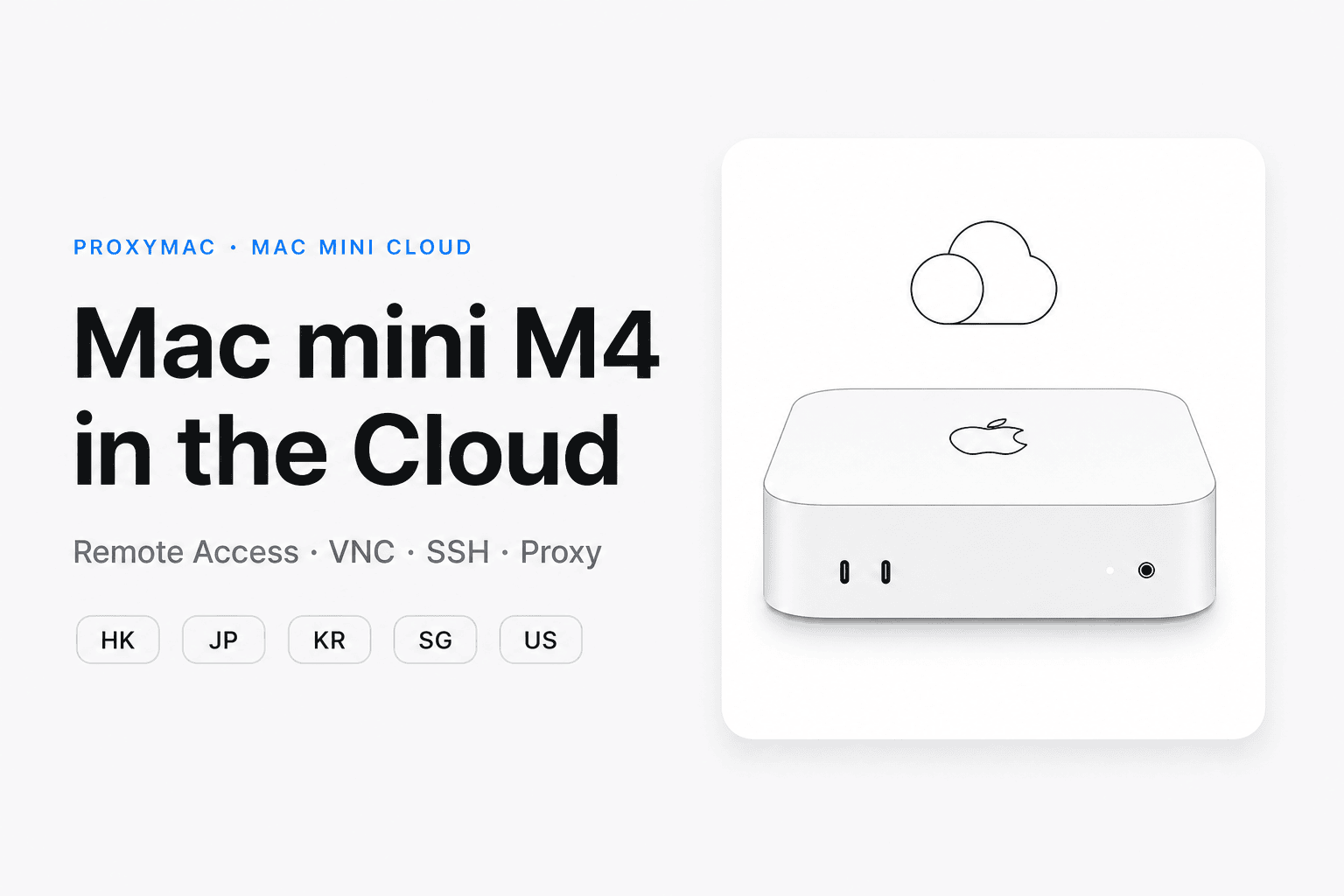
For the Windows-based developer, the most logical path is to separate the interface from the compute. Use your Windows PC for what it's best at, and leverage a high-performance remote Mac at proxymac.com for the heavy lifting of the Apple ecosystem. It’s faster, cheaper than a hardware upgrade, and ready for deployment in minutes.
FAQ
Further Reading
Unlock iOS Development on Windows with Dedicated M4 Power
Access dedicated Mac mini M4 nodes instantly via VNC, SSH, or directly through your web browser with zero hardware overhead.
Experience buttery-smooth Xcode performance and 40% faster build speeds on physically dedicated bare-metal hardware.