2026 Guide: How to Run Sketch on Windows via Remote Mac Solution
Why Designers Still Need Sketch in 2026
Despite the rise of browser-based tools, Sketch remains a cornerstone of the UI/UX industry. Many legacy design systems, high-end agency handovers, and specific plugin ecosystems (like specialized banking or healthcare design libraries) strictly require the .sketch format. For Windows users, this creates a significant barrier: you either buy an expensive MacBook or lose out on lucrative projects.
This article provides a definitive solution for running Sketch natively on Windows by utilizing remote Apple Silicon hardware. We will cover the setup process, latency optimization, and how to bridge the gap between Windows hardware and macOS software.
The Pain Points of Being a Windows-Based Designer
Working in a cross-platform environment often leads to several critical "deal-breakers" for creative professionals:
1. The Software Wall: Sketch is built on macOS-specific frameworks (like Cocoa), making a native Windows version impossible without a complete rewrite.
2. Inaccurate "Alternative" Tools: While some tools claim to open Sketch files, they often break symbols, override font rendering, or mess up intricate layer styles.
3. Hardware Investment Risk: Spending $2,000+ on a MacBook Pro just to handle one or two Sketch-specific clients is a poor ROI for freelance designers or small studios.
4. Collaboration Friction: Being unable to participate in a Sketch-based team workflow limits your marketability as a professional UI/UX designer.
Comparison: Sketch Access Methods for Windows Users
| Feature | Virtual Machines (VM) | Figma/Browser Imports | Remote Mac Rental (2026) |
|---|---|---|---|
| Performance | Laggy, no GPU acceleration | High | Native M3 Speed |
| Compatibility | Moderate (driver issues) | Low (broken symbols) | 100% Native |
| Ease of Use | Complex setup | Easy | Instant Access |
| Color Accuracy | Poor | Good | Professional Grade |
| Cost | Free (but unstable) | Subscription | Scalable/Pay-as-you-go |
5 Steps to Run Sketch on Windows via Remote Mac
Follow these steps to integrate a high-performance macOS environment into your Windows workflow:
- Provision Your Node: Select a remote Mac instance equipped with at least an M2 or M3 chip to ensure smooth rendering of complex artboards.
- Configure Modern Remote Protocols: Use a high-performance client (like Screens or specialized VNC) that supports 60FPS streaming. This is crucial for "pixel-perfect" movement in Sketch.
- Map Your Shortcuts: Within the remote session settings, remap the Windows "Ctrl" key to the Mac "Command" key. This ensures that
Cmd + R(Rename) andCmd + G(Group) work as intended. - Sync Your Fonts and Assets: Use iCloud or Dropbox to sync your local Windows font library to the remote Mac. Sketch relies heavily on system fonts for accurate rendering.
- Set Up Handoff and Export: Use the built-in "Sketch Cloud" or a plugin like Zeplin on the remote Mac to hand off designs. You can also drag and drop exported PNGs/SVGs directly from the remote window to your Windows desktop.
Infrastructure and Performance Data for 2026
To achieve a "local-feel" experience, target these technical benchmarks:
* Latency Threshold: For professional UI work, a latency of <20ms is ideal. Most modern fiber connections easily achieve this when connecting to a regional data center.
* Bandwidth Requirement: A steady 25Mbps downstream is required for 4K resolution at 60Hz, ensuring the Sketch interface remains crisp.
* Hardware Power: Utilizing Apple Silicon M-Series hardware reduces Sketch export times by up to 300% compared to older Intel-based Mac minis or local Windows VMs.
The Professional Verdict: Productivity Over Hardware
Using a Virtual Machine or a "cloud-based viewer" is often a recipe for frustration due to lack of hardware acceleration and broken font rendering. If your career depends on the precision of your UI kits and the speed of your delivery, a remote Mac project is the only viable professional alternative to buying a physical machine.
While Windows is great for gaming and 3D rendering, the macOS ecosystem still holds the keys to the most refined UI design tools. Don't let your PC hardware limit your client list. By leasing a high-performance Mac, you get the best of both worlds: your familiar Windows setup and the full power of Sketch.
Ready to start your first Sketch project on Windows? Access our 2026 high-performance Remote Mac nodes and experience 100% native macOS fluidity today.
FAQ
Further Reading
Run Sketch on Your Windows PC with High-Performance Cloud Macs
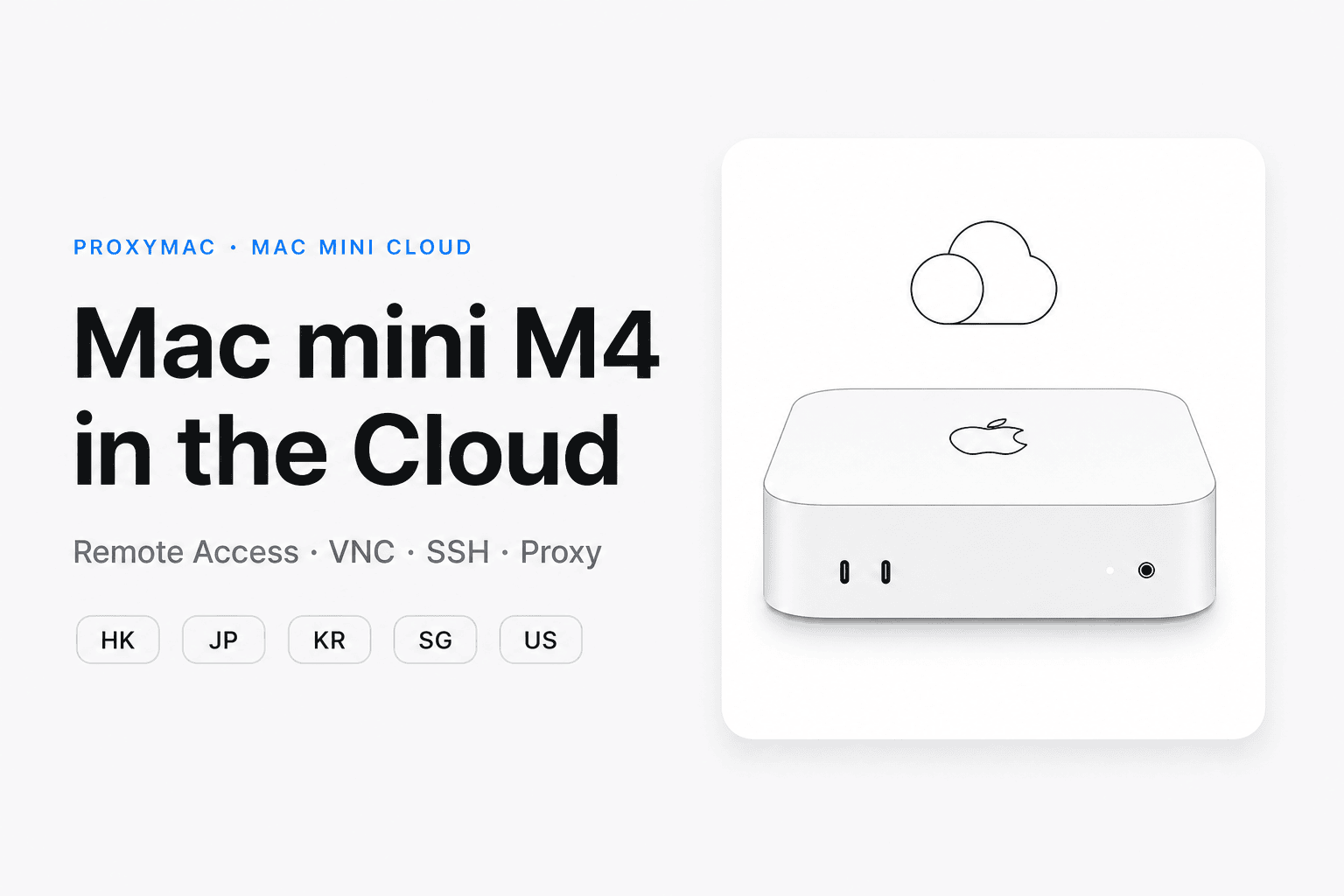
Access dedicated Mac mini M4 hardware via VNC for a lag-free Sketch design experience on any Windows or browser-based setup.
Enjoy professional-grade performance with 10-core M4 CPUs and 16GB unified memory, ensuring smooth handling of complex vector files.