How to Use the macOS 27 Siri App for Better Project Workflows
The counterintuitive part of the new Siri AI is that its best productivity feature may not be the answer it gives you. It may be the conversation you almost close afterward.
A quick question about a client brief can contain assumptions, rejected ideas, useful sources, and the next action. If you treat that exchange as a one-time answer, you lose most of its value. If you keep it as project material, the same conversation can become a research note, decision log, or delivery checklist.
That is the real question behind how to use the macOS 27 Siri app. It is not only about asking better questions. It is about building a repeatable system around the questions you already ask.
Apple describes Siri AI as a new conversational assistant with a dedicated app for revisiting conversations, pinning important threads, and continuing chats across Apple devices through iCloud. Apple’s current materials say the feature is coming in English later in 2026, while macOS 27 remains in the preview stage as of July 26, 2026. Availability can change before the public release. (apple.com)
Can your Mac use the new Siri app yet?
Before trying these workflows, check whether your setup supports the features shown in demonstrations.
Apple says Apple Intelligence and Siri AI require supported hardware. The current compatibility list includes Mac models with Apple silicon, while supported languages and regions vary by feature. Apple also says Siri AI is being introduced in English first, and some capabilities may remain unavailable in particular regions or languages. (apple.com)
On a compatible Mac, check:
- Open System Settings.
- Select Apple Intelligence & Siri.
- Confirm that Apple Intelligence is enabled.
- Check the Siri language and region.
- Install the latest available macOS 27 preview only if you accept beta software risks.
- Sign in to the same Apple Account on your other devices.
- Confirm that iCloud is enabled for the services required by the Siri app.
The exact menu names may change between preview builds. If you cannot find the dedicated Siri app, that does not necessarily mean your Mac is unsupported. The feature may not be enabled in your language, region, hardware configuration, or current build.
Apple’s support documentation also notes that Siri needs an internet connection and that Apple Intelligence output can vary. Treat important answers as drafts that require checking, not as final authority. You can review Apple’s official Siri and Apple Intelligence guidance before changing your setup. (support.apple.com)
Why keep Siri conversations as project material?
Most people use an AI assistant like a search box. They ask a question, scan the answer, and move on. That habit creates three hidden costs.
First, you repeat the same background. Every new chat needs the project name, target audience, constraints, tone, deadline, and previous decisions. Repeating that context wastes time and increases the chance of inconsistent answers.
Second, you lose decisions. A useful conversation may explain why one headline was rejected, why a technical approach was changed, or why a client recommendation was softened. If you cannot find that reasoning later, you may revisit the same issue without knowing it.
Third, you create fragmented work. One answer starts on your Mac, another begins on your iPhone, and a screenshot analysis remains trapped in a temporary window. The information exists, but it does not form a usable project trail.
A better system is simple:
- One conversation for one meaningful project.
- A clear name that you can recognize later.
- Follow-up questions in the same thread.
- Pinned conversations for active work.
- Separate conversations for unrelated topics.
- A final request that turns discussion into actions, notes, or deliverables.
This does not make Siri AI a replacement for a project management tool. It gives you a lightweight decision layer that sits between raw information and finished work.
1. Can one pinned conversation replace repeated project briefings?
If you work with clients, write long-form content, or study a technical subject over several days, you probably explain the same context repeatedly. A dedicated Siri thread can reduce that repetition.
Who will find this useful?
Use this method when the work has stable background but changing tasks. Examples include:
- A website redesign with weekly decisions.
- A research article that needs several rounds of source checking.
- A freelance client account with recurring deliverables.
- A certification topic you are learning over multiple sessions.
- A software project where you need to track trade-offs.
How to set it up
- Open the Siri app and start a new conversation.
- Give it a specific opening instruction, such as: “This conversation is for the Acme onboarding project.”
- Add the project context in a compact brief:
- Goal.
- Audience.
- Deadline.
- Known constraints.
- Preferred output style.
- Decisions already made. - Ask Siri to restate the brief as a checklist.
- Correct anything inaccurate.
- Pin the conversation.
- Return to the same thread for later questions.
Do not write a vague title such as “Work” or “Research.” Use a name you can search mentally, such as “Client onboarding — email sequence” or “Mac automation — article research.”
The useful trick is to ask Siri to maintain a decision log inside the conversation. After a major change, write: “Summarize what changed, why we changed it, and what remains open.” That creates a searchable record without requiring you to maintain a separate note after every exchange.
What is the real benefit?
You spend less time rebuilding context. More importantly, Siri can respond to the current question with the project’s previous constraints in view.
For example, instead of asking, “Give me five landing page ideas,” you can ask, “Based on the audience and tone we agreed on earlier, give me three landing page directions that avoid the rejected claims.”
That is a much better prompt because it contains project memory.
Practical warning: A long conversation is not automatically a reliable knowledge base. Older assumptions may become outdated, and the model may lose track of details in a very large thread. Every few sessions, ask Siri to produce a short current brief and keep that summary in your project notes.
2. How do you find an old Siri answer without scrolling forever?
The question “Siri AI conversation history how to find” reflects a real problem: remembering that you asked something is easier than remembering where the answer lives.
Who encounters this problem?
This happens when you:
- Remember a conclusion but not the wording.
- Need to recover a previous recommendation.
- Want to check what you told a client.
- Need to revisit an earlier research question.
- Cannot remember which device started the conversation.
How to search the history
- Open the dedicated Siri app.
- Look through the conversation list for the project name or recent topic.
- Use the app’s search function if it is available in your build.
- Search using distinctive terms, not broad words.
- Open the relevant thread.
- Ask a follow-up question such as: “What conclusion did we reach about the launch timeline?”
- Request a short list of evidence, assumptions, and next actions.
- Verify any time-sensitive detail against the original source.
Search terms should reflect the language you used in the conversation. “Launch timeline,” “pricing objection,” or “M2 build issue” will usually be more useful than “project.”
This workflow is particularly useful for decision recovery. Instead of asking Siri to make the decision again, ask it to explain the previous decision. Then compare the old reasoning with the current situation.
For example:
- “Why did we reject the three-tier pricing model?”
- “Which risks did we identify in the original deployment plan?”
- “What information was still missing before we could approve the proposal?”
The answer can help you recover the chain of thought, but it should not be treated as a permanent audit record. Siri may summarize imperfectly, and an old answer may have been based on information that has since changed.
What should you verify?
Check:
- Current software versions.
- Prices and subscription terms.
- Laws and compliance requirements.
- Product availability.
- Security recommendations.
- Dates, schedules, and technical specifications.
Apple explicitly warns that Apple Intelligence output may vary and should be checked for accuracy. (support.apple.com)
3. Can Spotlight Ask Siri become the front door to research?
You do not need to open the Siri app for every question. A useful workflow is to use Spotlight for fast triage and the Siri app for sustained research.
This is the Spotlight Ask Siri workflow:
- Ask quick questions in Spotlight.
- Keep only questions that deserve more work.
- Move those questions into a named Siri conversation.
- Continue researching inside the project thread.
When does this save time?
Use it when you are writing, comparing tools, or handling several small decisions during the day. Spotlight is good for removing small interruptions:
- “What does this error message usually mean?”
- “Convert this deadline into my time zone.”
- “What are the key differences between these two file formats?”
- “Give me three questions to ask before accepting this proposal.”
If the answer is enough, move on. If the answer creates a useful direction, open the Siri app and continue there.
A five-step workflow
- Press the Spotlight shortcut.
- Choose Ask Siri if it appears in your build.
- Ask one narrow question.
- Identify whether the answer needs sources, follow-up, or project context.
- If it does, start or continue the related Siri conversation.
The mistake is using Spotlight for a ten-question investigation. That creates fragments. Spotlight should be the intake layer, not the project archive.
For a writer, the flow might look like this:
- Spotlight: “What problem does this technical term solve?”
- Siri app: “Create a research thread about this term.”
- Follow-up: “Explain the practical implications for Mac administrators.”
- Follow-up: “Separate verified facts from assumptions.”
- Final request: “Turn the confirmed points into a 700-word outline.”
This is one of the most practical Apple Intelligence project management techniques because it separates quick capture from structured development.
What is the limitation?
The transition between Spotlight and the Siri app may not preserve every detail automatically in every preview build. If the handoff is unclear, copy the question into the project conversation or restate it in one sentence. That is still faster than opening several browser tabs and trying to reconstruct the original thought later.
4. How can Visual Intelligence screenshot questions become a problem archive?
Visual Intelligence is more useful when you stop asking it to identify an image and start asking it to explain a problem shown in the image.
This works with:
- A PDF chart you do not understand.
- A webpage error.
- A design review comment.
- A terminal output.
- A settings panel.
- A screenshot of a confusing workflow.
Who should use this method?
Use it when the visual context matters. Copying text into a chat may remove the relationship between labels, warnings, buttons, and layout. A screenshot preserves that context.
How to turn a screenshot into a reusable record
- Capture the relevant screen area.
- Send it to Siri through the supported Visual Intelligence entry point.
- Ask what the image shows.
- Follow up with the likely cause.
- Ask for two or three possible solutions.
- Request a verification checklist.
- Save the conversation under the project name.
- Pin it if the issue is still open.
For a build error, do not stop at “What does this error mean?” Continue with:
- “Which part is the likely root cause?”
- “What should I check before changing the code?”
- “Show the least destructive fix first.”
- “Which result would confirm that the fix worked?”
- “Turn this into a troubleshooting checklist.”
That turns visual analysis into a problem archive.
For a design screenshot, you can ask Siri to separate observable facts from subjective recommendations. For example: “List only the visible layout issues first. Then suggest improvements based on the stated goal.”
This distinction matters because visual tools can sound confident when the image is ambiguous. A cropped screenshot may hide the setting, filename, or error line that changes the diagnosis.
Apple describes Siri AI as supporting image understanding and multimodal requests across Mac and other Apple platforms. The exact entry point and available actions may vary by release, language, and region. (apple.com)
5. Can you start on iPhone and finish on Mac?
The most valuable cross-device workflow is not simply asking the same question twice. It is capturing a problem while mobile and completing the deliverable when you return to your Mac.
Apple says the dedicated Siri app uses iCloud to sync conversational history across a user’s products, allowing a conversation started on one device to continue on another. (apple.com)
A realistic example
Imagine you are leaving a client meeting. On your iPhone, you ask Siri:
“Turn these meeting notes into the three decisions we made and the two questions still open.”
Later, on your Mac, you continue:
“Use that summary to draft a follow-up email in a neutral, concise tone. Do not promise a delivery date.”
The first device captures the situation. The Mac handles the larger output.
How to use the workflow
- Start a named Siri conversation before the meeting or site visit.
- Add short notes while the details are fresh.
- Ask Siri to separate decisions, questions, risks, and actions.
- Continue the same conversation on your Mac.
- Ask for the output you actually need: email, outline, task list, or brief.
- Review every name, date, and commitment before sending.
- Copy the final result into your normal project system.
This works well for freelancers, consultants, sales professionals, and anyone who moves between devices during the day.
What if iCloud syncing fails?
Check the basics first:
- Same Apple Account on both devices.
- Current operating system versions.
- Stable internet connection.
- iCloud enabled.
- Siri AI available in the same supported language.
- Enough time for the conversation to appear.
If the thread is missing, do not immediately recreate it. Check the source device first, then confirm whether the conversation was actually saved. Preview software can also contain synchronization bugs.
Apple’s macOS 27 release notes list known Siri issues, including cases where conversations in the Siri app may disappear shortly after streaming responses. That is a serious reason to copy important decisions into a separate note or project system rather than relying on the conversation history alone. (developer.apple.com)
Which Siri entry point fits each task?
A useful comparison is based on the job, not the feature list.
Use Spotlight Ask Siri when:
- You need a fast answer.
- The question is isolated.
- You are deciding whether deeper research is worthwhile.
- You do not need a long project context.
Use the Siri app when:
- The topic will take several questions.
- You need to preserve reasoning.
- You are working on a client or writing project.
- You want to pin and revisit the conversation.
Use screenshot-based Visual Intelligence when:
- The layout or visual relationship matters.
- You are troubleshooting an error shown on screen.
- Copying text would remove important context.
- You need a checklist based on what is visible.
Use cross-device continuation when:
- You capture information away from your desk.
- You need to turn notes into a finished document later.
- Your work naturally moves between iPhone and Mac.
For a responsible hands-on comparison, record the same task through each entry point and note four things: how many steps it takes, whether the context survives, whether the answer is actionable, and whether the conversation is easy to find later. Avoid inventing precise time savings. The right result depends on language, hardware, network quality, and the current preview build.
What should Siri AI not replace?
Siri AI is not the best long-term home for every type of information.
Do not rely on it as your only place for:
- Final contracts.
- Passwords or private keys.
- Compliance records.
- Source citations.
- Detailed financial models.
- Version-controlled technical documentation.
- Client approvals.
- Irreplaceable project files.
It also should not replace a dedicated task manager when ownership, due dates, dependencies, and status reporting matter. A Siri conversation can help create the task list, but the final tasks should live where your team already works.
There are also practical limits:
- Beta behavior can change.
- Some app actions may not be available.
- Long conversations can become difficult to audit.
- Visual interpretation can be wrong when screenshots are incomplete.
- Cross-device syncing can fail.
- Time-sensitive answers require verification.
Apple’s developer documentation explains that Siri’s deeper app interaction depends on app integration through App Intents and related schemas. That means support can differ substantially between apps. (developer.apple.com)
Is a local Mac better for this workflow than a temporary setup?
If you are testing macOS 27, the practical problem is often access rather than curiosity. A spare Mac may be unavailable, upgrading your primary computer may feel risky, and a remote environment can introduce latency, display issues, or device-account limitations.
A cloud or Windows-based setup may also make the workflow harder because the value depends on Apple silicon compatibility, macOS 27 system behavior, iCloud continuity, and access to Mac-specific Siri entry points. The hidden costs are not just hardware. They include setup time, unstable remote sessions, limited device integration, and the risk of testing on a machine you need for daily work.
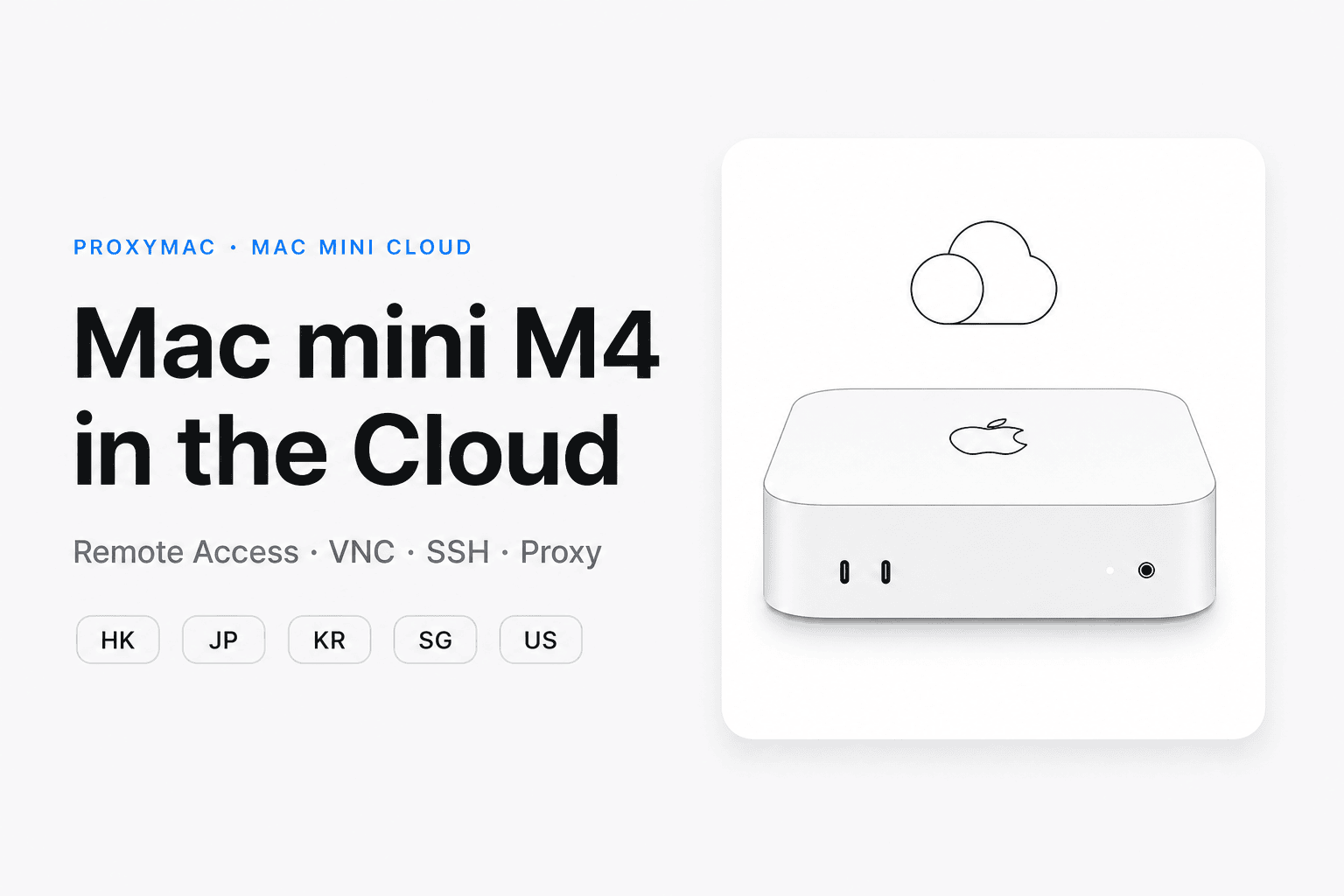
For short experiments, renting a Mac through ProxyMac can be a cleaner option than changing your main workstation. You can use a separate environment to test Siri AI project threads, compare Spotlight and the Siri app, and check whether your workflow survives across sessions. If you need to review account options or ongoing access, the ProxyMac billing information page provides the relevant service details.
The important advantage is isolation. Your primary Mac remains stable while the test machine handles preview software and experimental workflows. That does not remove Apple’s language, hardware, or beta limitations, but it can reduce the operational risk of testing them.
Who should build a Siri project library first?
Start with this system if you are:
- A freelancer who repeats client context across deliverables.
- A researcher who needs to recover old reasoning.
- A writer who develops one topic over several sessions.
- A consultant who captures questions away from the desk.
- A Mac user who switches between iPhone and Mac.
- An efficiency enthusiast willing to test beta behavior carefully.
Do not try to reorganize your entire work life around Siri AI on day one. Choose one active project. Create one clearly named conversation. Pin it. Use it for a week. At the end of the week, ask Siri to summarize the decisions, unresolved questions, and next actions.
That small test will tell you more than a list of advertised features. You will quickly see whether your project benefits from conversational continuity or whether the information belongs in a dedicated document, task manager, or knowledge base.
The most useful answer to how to use the macOS 27 Siri app is therefore not “ask it more questions.” It is “give important questions somewhere meaningful to go.”
Turn Your Project Conversations Into Work You Can Run
Deploy a dedicated Mac mini M4 in about five minutes and turn saved project notes into active work.
Continue each workflow through SSH, VNC, or browser access from any device.