2026 Gemini Spark Remote Control Mac: Setup Guide
Use Gemini Spark for remote Mac control only after creating a small test folder and proving the recovery path. It can trigger tasks from another device, but it is not the same as a server-grade, unattended automation host. For file edits, schedules, or long-running workflows, start with least privilege and move the workload to a spare Mac or isolated cloud Mac when the primary Mac cannot stay available.
Last updated July 30, 2026. Eligibility, connection requirements, backup behavior, and Mac app requirements were checked against the current official documentation from the Gemini Mac app requirements guide, the Gemini Spark Mac control guide, and the Spark task documentation.
This guide is for independent developers who want to trigger Mac workflows from a phone or another computer, heavy automation users preparing scheduled file tasks, and IT owners who must verify permission boundaries, recovery behavior, and continuous availability.
The winning deployment pattern: isolated Mac first, primary Mac only for low-risk work
A typical failure starts with a harmless-looking instruction: “Clean up the project folder, rename the outdated files, and send the final package.” If the connected folder is too broad, the task may touch unrelated files. If the temporary recovery window has passed, the operator may need to restore the files manually from another backup.
That is why the first deployment should not begin with a Desktop folder, a Documents root, a photo library, or a synchronized drive. Create a dedicated directory with sample files. Connect only that directory. Test reading, copying, renaming, and recovery before allowing external sharing or deletion.
Gemini Spark can work with files and Connected Apps, and its Mac app can be controlled from another device. Official documentation also warns that Spark can access, edit, share, or delete connected information depending on the permissions and sources provided.
The practical decision is simple:
- Primary Mac: suitable for read-only analysis and reversible tasks that have human review.
- Spare Mac: better for regular file changes, scheduled workflows, or tasks that should not interrupt daily work.
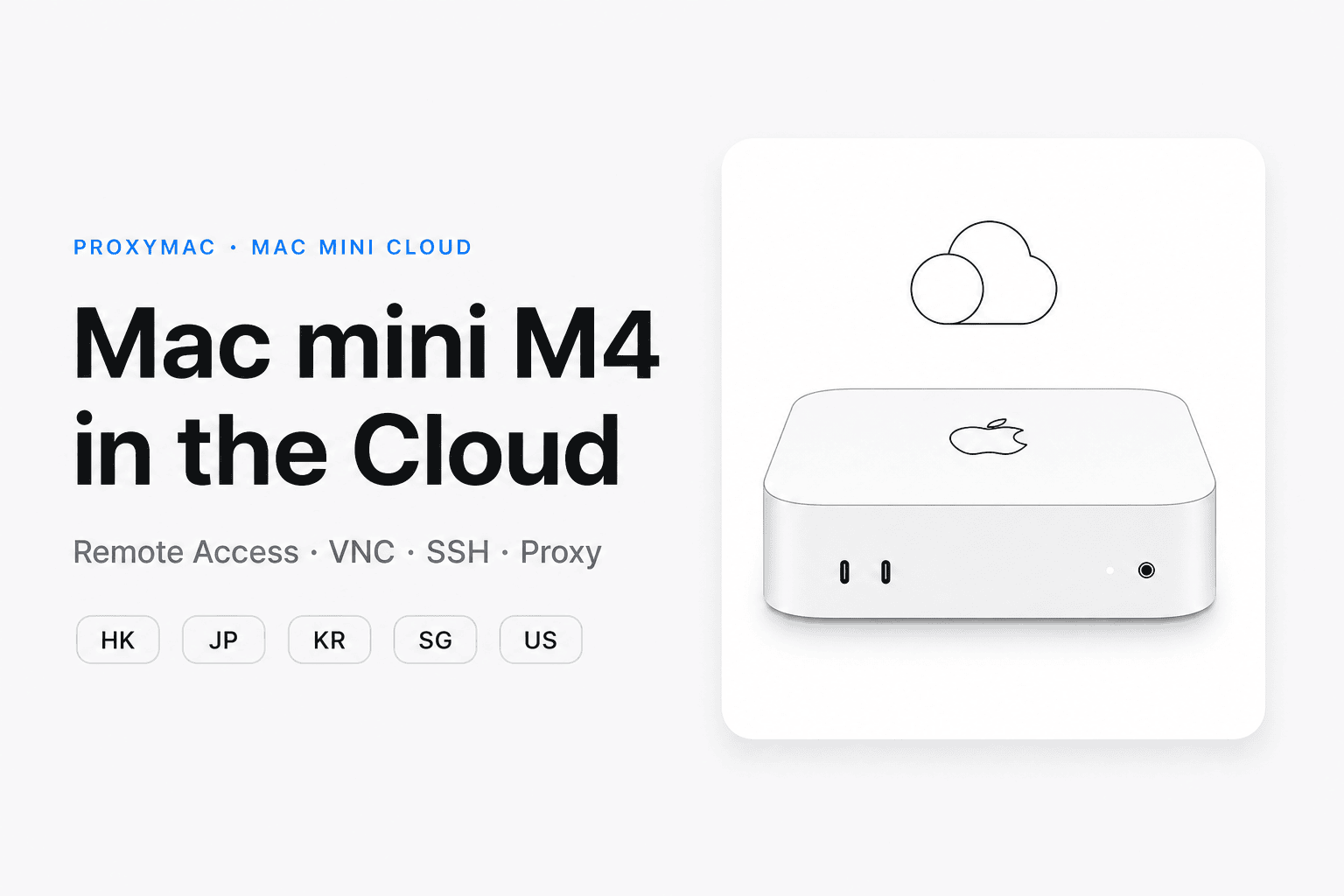
- Cloud Mac: better when the task needs a separated environment, stable remote access, or an explicit handover process.
A useful deployment target is not “maximum automation.” It is a workflow that can be stopped, inspected, restored, and repeated without guessing what changed.
Before installation: separate eligible tasks from unsafe experiments
The first step is not downloading Gemini for Mac. It is checking whether the account, region, language, subscription, and device meet the current requirements.
The official Mac app guide requires a Mac running macOS Sequoia 15.0 or later, Apple Silicon, at least 8 GB of memory, at least 200 MB of available installation space, and a stable internet connection. (support.google.com) These are app requirements, not proof that every Gemini Spark capability is available on every Mac release.
The current Spark documentation also lists several account conditions. Users must be at least 18, use a personal Google Account, keep Activity enabled, and have an eligible Google AI subscription. In the United States, the listed plans are Google AI Pro or Ultra. Availability and supported languages vary by region and subscription. Work or school accounts may not be supported for Spark.
The word may matters here. macOS 27 compatibility should not be assumed merely because the Mac app supports an earlier macOS release. If a deployment depends on macOS 27, verify the current app documentation and run a local acceptance test after updating the operating system. Do not make a production workflow depend on a version that has not been explicitly validated.
Classify the intended work before granting access:
| Task class | Examples | First deployment decision |
|---|---|---|
| Read-only analysis | List files, summarize notes, inspect a project structure | Acceptable in a test folder |
| Reversible editing | Rename copies, update a draft, generate a report | Test with duplicates and review output |
| External sharing | Email a file, upload a document, edit a shared workspace | Keep a human confirmation step |
| Destructive action | Delete files, overwrite originals, remove records | Do not use as the first test |
The main hidden cost is not installation time. It is the review burden after a task runs across a broad directory. A small connected folder limits both the blast radius and the time needed to verify the result.
For background on how ProxyMac approaches isolated Mac environments, the Mac environment overview provides a reference before choosing a host for recurring automation.
Least privilege beats broad access during the first authorization
After installing the app, create a folder such as Spark-Test inside a location that contains only disposable copies. Add a text file, a duplicate document, and a small sample project. Do not begin with the real workspace.
Gemini Spark’s Connected folders control which Mac folders it can view and edit. The official guide says that Spark can access most common Mac folders if permission is granted, including Downloads, Desktop, Documents, and Photos. It also states that folders can be disconnected from the Connected folders toolbar.
The permission layers should be treated separately:
- Files and Folders: controls access to selected locations such as Desktop, Documents, or Downloads. Apple documents this control under System Settings, Privacy & Security, and Files & Folders. (support.apple.com)
- Accessibility: can allow an app to interact with parts of the user interface. This is broader than simply reading a file and should be enabled only if the tested workflow actually needs interface control.
- Screen and System Audio Recording: permits screen or audio capture. Apple provides a separate control under Privacy & Security. It should not be enabled by default for a file-only workflow. (support.apple.com)
- Connected Apps: may expose information beyond the local folder, including cloud documents, messages, or other services. Treat each connection as a separate data boundary.
Record the starting state before the first task:
- Connected folders.
- Enabled macOS permissions.
- Account used for Spark.
- Sample file names and hashes, if the workflow is technical.
- A screenshot of the task settings.
- A copy of the test directory outside the connected path.
This baseline makes later troubleshooting possible. Without it, “the task changed something” is not enough information to identify whether the cause was a prompt, a permission change, a Connected App, or a previous task.
What should the first task prove?
The first task should validate a complete reversible chain:
- Read a known file.
- Create a copy with a new name.
- Modify only the copy.
- Save the output to a separate result folder.
- Report the files changed.
- Stop for human review.
A suitable prompt might ask Spark to read input.txt, duplicate it as input-copy.txt, add a clearly marked line to the copy, and save a short change report in results. The exact wording is less important than the constraints. The task should identify allowed paths, forbid deletion, and require confirmation before any external action.
Open the task work panel and inspect each stage. The official Spark task documentation says that tasks can be monitored from the Tasks area, where users can review progress and identify tasks that need attention.
The recovery test is equally important. Gemini Spark creates temporary backup files when it works with computer files. Those backups can be recovered before the next task, but the official Mac guide says they are deleted when a new query or task starts, or after 24 hours. (support.google.com)
That limitation changes the operating rule:
Temporary Spark backups are a short recovery aid, not a backup strategy.
A separate backup, version-control repository, or snapshot should protect anything that matters. A task that can modify production files must have an independent restore path before it is scheduled.
Remote trigger, scheduled task, and unattended execution are different
Remote control means starting a task from another device. It does not automatically mean the Mac can run every task without supervision.
The official remote-control flow requires the Gemini app to be set up and running on the Mac, Spark terms to be accepted in the Mac app, and the other device to use the same account. Google also documents a local connection requirement: the devices should use the same Wi-Fi network, or Bluetooth should be enabled and linked.
Test the connection in this order:
- Open Gemini on the Mac and confirm Spark is available.
- Sign in on the second device with the same account.
- Confirm the Mac appears in the remote computer picker.
- Start a read-only task.
- Confirm the task appears on the Mac.
- Review the result locally.
- Disconnect the test folder and confirm that new tasks cannot access it.
A scheduled task adds a time or event trigger. Spark’s official schedule documentation lists time-based schedules, Gmail monitors, and topic monitors. It also warns that monitors are not ideal for fast-moving or time-critical actions. (support.google.com)
Unattended execution is a stronger claim. It means the task can continue without a person watching the screen, answering a prompt, restoring access, or confirming an external action. The documentation does not establish that every Mac task continues reliably after a lock screen, network switch, application restart, or sleep state.
For that reason, the following cases remain deployment tests rather than assumptions:
- Mac locked after the task starts.
- Mac display asleep but system still running.
- Network changes from one connection to another.
- Gemini app restarts.
- The Mac reboots.
- A required folder permission is revoked.
- The task reaches an email, upload, or deletion step.
If the workflow must survive these conditions, a spare or cloud Mac is usually easier to control than a primary laptop. A cloud Mac can also provide a cleaner handover when another person owns the task queue, but it adds costs for access management, monitoring, storage, and recovery.
First-day acceptance: monitor the task instead of trusting the prompt
On the first day, the operator should watch the task page for four states:
- Running.
- Waiting for input.
- Completed.
- Failed.
Notifications are useful only if they lead to a defined human action. A notification that says a task needs input does not solve the problem unless someone knows whether to approve, stop, or revise the task.
Use this response order when a task behaves unexpectedly:
- Stop or pause the task from the task panel.
- Disconnect the affected folder.
- Revoke unnecessary macOS permissions.
- Inspect the file system and compare it with the baseline snapshot.
- Recover the temporary backup if it still exists.
- Restore from an independent backup if required.
- Rewrite the task with narrower paths and explicit exclusions.
- Run the revised task against disposable copies.
Do not let Spark directly send mail, share documents, or delete content during the first day. Those actions can cross a data boundary that is difficult to reverse. The official Spark guide specifically warns against entering sign-in information, payment details, or sensitive information directly into a task thread.
A strong first-day result is not “the automation finished.” It is “the operator can explain every changed file and restore the environment without relying on memory.”
The first-week decision: primary Mac, spare Mac, or cloud Mac
After the initial test, score the workload against five questions:
- Does it need to stay available outside working hours?
- Can a wrong edit be reversed?
- Does it need access to private or shared data?
- Will more than one task run regularly?
- Who owns failure recovery?
The answer should determine the host.
| Deployment location | Best fit | Main weakness | Operating rule |
|---|---|---|---|
| Primary Mac | Read-only research, draft creation, low-risk personal tasks | Daily work can be interrupted; data scope is broad | Keep human review and narrow folders |
| Spare Mac | Recurring edits, scheduled workflows, controlled Connected Apps | Requires separate maintenance and account setup | Use a dedicated user or isolated workspace |
| Cloud Mac | Continuous remote access, team handover, separated environments | Adds access, storage, monitoring, and recovery work | Treat it as an operated environment, not a magic server |
A low-frequency read-only workflow can remain on a primary Mac. Frequent file modification, scheduled processing, or a requirement for stable remote access points toward a spare Mac or cloud Mac.
The cloud option is not automatically cheaper. The comparison must include the host, persistent availability, storage, identity controls, backup, monitoring, and operator time. ProxyMac’s account and environment documentation can help teams review the operational side before moving an AI workflow away from a personal Mac.
The acceptance record should contain four items:
| Acceptance item | Evidence to keep | Pass condition |
|---|---|---|
| Permission inventory | Screenshot or exported notes | Only required folders and system permissions remain enabled |
| Task sample | Prompt, output, and changed-file list | Every change is explainable |
| Recovery record | Backup or version-control restore result | A failed edit has a known recovery path |
| Environment handover | Account, connection, schedule, and stop procedure | Another operator can stop and inspect the workflow |
A safer operating model for Gemini Spark on Mac
Gemini Spark is most useful when the task has a defined input, a limited workspace, and a clear output. It is a poor fit for vague instructions such as “organize everything,” especially when the connected location contains personal files, synchronized content, or shared documents.
The following checklist can be used before enabling a recurring workflow:
- [ ] The account, subscription, region, language, and Mac requirements were verified against current official documentation.
- [ ] The test folder contains copies, not production originals.
- [ ] Connected folders exclude Desktop, Documents, Photos, and sync-drive roots unless specifically required.
- [ ] Files and Folders permissions match the task scope.
- [ ] Accessibility and screen recording are disabled unless the workflow needs them.
- [ ] The first task reads, copies, modifies, and reports without deleting or sharing.
- [ ] Temporary Spark backup behavior was observed and an independent backup was tested.
- [ ] Remote triggering was tested from another device with the same account.
- [ ] Locked-screen, network-change, restart, and permission-revocation behavior was marked as verified or unverified.
- [ ] Email, upload, sharing, and deletion steps require human confirmation.
- [ ] A stop, disconnect, revoke, inspect, and restore procedure is written down.
- [ ] The final host decision names a primary Mac, spare Mac, or cloud Mac and explains why.
This approach also prevents a common category error. Gemini for Mac is a desktop application. Gemini Spark is a task and workflow layer. Remote control is a connection feature. Scheduled execution is a trigger. None of these labels alone proves server-like availability.
Final recommendation: test locally, isolate early, then move recurring work
The best starting point is a primary Mac with a disposable test directory, not a broad file permission grant. Use one reversible task to confirm reading, copying, modification, task reporting, and recovery. If the Mac cannot stay available, or if the workflow needs file access and automation permissions that do not belong on a daily workstation, move it to a spare or isolated cloud Mac.
The current primary-Mac approach has three practical weaknesses: the machine may be offline, personal data is close to the connected workspace, and a failed task can interrupt the operator’s normal work. A cloud Mac or spare Mac adds setup and operating cost, but it gives the workflow a clearer boundary, easier handover, and more predictable access model.
For teams that need temporary compute or an isolated automation environment, renting a Mac through ProxyMac can be more suitable than weakening the permission boundary of a personal machine. The right next step is not to grant every permission. It is to complete one controlled read-modify-recover test, document the result, and then choose the smallest environment that can stay available for the real workload.
Deploy Your Dedicated Remote Mac with ProxyMac
Use a separate Mac environment for remote tasks without changing your primary computer.
Choose a plan that matches your workload, testing needs, and usage schedule.